Mesh Wrap by KIRI Engine
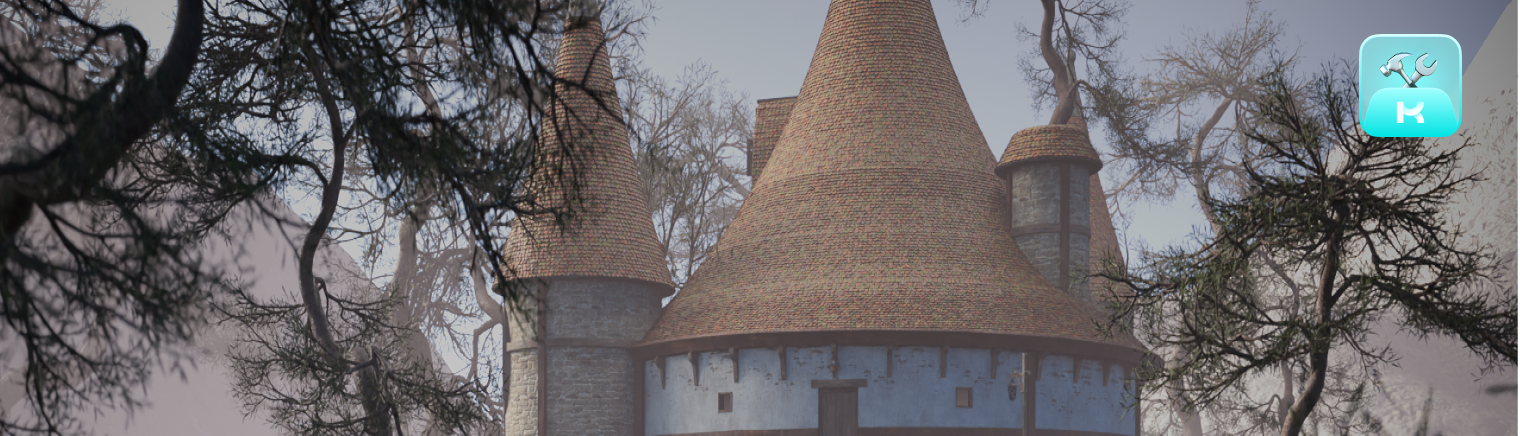
Mesh Wrap simplifies the process of landscape and environment creation by 'wrapping' terrain and surface scans to base meshes without any loss of detail associated with traditional shrinkwrap methods.

Download Mesh Wrap Addon


Please note: We are making these Blender addons available to you completely for free.:) If you like what we are doing, the best way to support us is to download KIRI Engine app on your phone and consider becoming a KIRI Engine Pro user
.png?v=208deeede434dd3f585dcb9e45a75ba5c05c7e27)
1. Important Notes and Tips
- The add-on is optimised to work with terrain and surface scans. Manifold, 'solid' meshes with produce unwanted results when scattered or wrapped
- Working with a large number of scanned pieces - especially when scattering - can quickly put poly counts into millions. An optimised workflow is vital to using the add-on and decimation modifiers are usually advised.
- The origin and rotation of the source terrain objects will affect the wrapping results - more about this in the Mesh Preparation section
- Scattering will introduce overlapping, unoptimised topology.
2. Installation
Important: Blender Version Compatibility Notes
We create these Blender add-ons as extra tools for the community. Because Blender’s API can change between releases, maintaining compatibility across every future Blender version requires more development time than we can sustainably provide.
Some addons will support only the current Blender version at the time of its release. We'll try to add updates when we are free and able, but can’t guarantee compatibility with later Blender releases.
Thank you for understanding. Keeping this scope manageable allows us to continue releasing useful tools for the Blender community while focusing our development resources on KIRI Engine.
.png?v=208deeede434dd3f585dcb9e45a75ba5c05c7e27)
To install the addon make sure you have downloaded the addon .ZIP file to your computer.
Drag and drop the .ZIP from a file browser into Blender’s 3D viewport.
A confirmation window will appear. Hit okay and the addon will be installed
.png?v=208deeede434dd3f585dcb9e45a75ba5c05c7e27)
The add-on should be visible on the N-Panel of the 3D Viewport
.png?v=208deeede434dd3f585dcb9e45a75ba5c05c7e27)
3. Mesh Preparation
.png?v=208deeede434dd3f585dcb9e45a75ba5c05c7e27)
The rotation and origin of your meshes will greatly affect the wrapping results. We can see in the image above, a mesh with a skewed rotation and greatly offset origin.
This results in the wrapped mesh floating above the target base mesh.
.png?v=208deeede434dd3f585dcb9e45a75ba5c05c7e27)
After applying a more logical rotation and origin the wrapping is better and can be further improved with the boundary and sub-origin settings (shown later).
.png?v=208deeede434dd3f585dcb9e45a75ba5c05c7e27)
.png?v=208deeede434dd3f585dcb9e45a75ba5c05c7e27)
To help quickly adjust mesh origins and rotation, some tools have been included in the Mesh Prep Tools section of the add-on.
.png?v=208deeede434dd3f585dcb9e45a75ba5c05c7e27)
The Auto Rotate button will attempt to align meshes to a world axis. The result will be less accurate depending on the planarity of the selected mesh.
.png?v=208deeede434dd3f585dcb9e45a75ba5c05c7e27)
Before pressing Auto Rotate
.png?v=208deeede434dd3f585dcb9e45a75ba5c05c7e27)
After Auto Rotate
.png?v=208deeede434dd3f585dcb9e45a75ba5c05c7e27)
If you find that after using Auto Rotate, the mesh is aligned to the wrong world axis - you can use the XYZ buttons to quickly rotate the mesh 90 degrees - positive or negative depending on the -/+ setting
.png?v=208deeede434dd3f585dcb9e45a75ba5c05c7e27)
The Set Origin buttons can quickly set the origin of a selected mesh to the highest, lowest or mid point of a chosen axis.
.png?v=208deeede434dd3f585dcb9e45a75ba5c05c7e27)
4. Planar Wrap
Planar Wrap is used for wrapping a single mesh object to a target base mesh.
.png?v=208deeede434dd3f585dcb9e45a75ba5c05c7e27)
.png?v=208deeede434dd3f585dcb9e45a75ba5c05c7e27)
The modifier can be applied by first selecting the object to be wrapped and press Mesh Wrap Planar from the addon
.png?v=208deeede434dd3f585dcb9e45a75ba5c05c7e27)
Once pressed, a pop up will appear, allowing you to select the base mesh Target Surface.
This does not need to be chosen now, it can also be chosen later from within the wrap settings.
Pressing OK will add the modifier to the Active Object.
.png?v=208deeede434dd3f585dcb9e45a75ba5c05c7e27)
Once applied, the full modifier settings will be shown in the add-on.
Decimate
At the top of the panel we have the ability to Add Decimate - which will add a decimate modifier to the Active Object.
.png?v=208deeede434dd3f585dcb9e45a75ba5c05c7e27)
If a Decimate modifier is present, the Decimate Ratio for the object will be shown at the top of the add-on.
.png?v=208deeede434dd3f585dcb9e45a75ba5c05c7e27)
Wrap Direction
The wrapping works by 'shooting rays' from the wrap object to the Target Surface. The direction of these rays is controlled by the Wrap Direction settings
.png?v=208deeede434dd3f585dcb9e45a75ba5c05c7e27)
If the rays 'hit' the Target Surface, the mesh will be wrapped. If the wrap direction is pointing in the wrong direction for the rays to hit the Target Surface, the object will turn into a warning proxy object stating SURFACE NOT FOUND. If the wrap object is selected, a yellow arrow gizmo can be shown to display the current Wrap Direction.
.png?v=208deeede434dd3f585dcb9e45a75ba5c05c7e27)
By default the Wrap Direction is set to -Z, with the rays shooting down to the ground. This should work for most terrain cases. But for walls or vertical terrain, you may need to adjust the Wrap Direction.
.png?v=208deeede434dd3f585dcb9e45a75ba5c05c7e27)
.png?v=208deeede434dd3f585dcb9e45a75ba5c05c7e27)
If the wrap object rays point in the correct direction but the object is offset from the Target Surface, the warning text will also show. Once the wrap object is placed into position for the rays to 'hit' the Target Surface, the mesh will be restored.
Displacement
The re-displacement of the original mesh details can be controlled with the Dispalcement Strength.
.png?v=208deeede434dd3f585dcb9e45a75ba5c05c7e27)
.png?v=208deeede434dd3f585dcb9e45a75ba5c05c7e27)
Surface Offset
The offset from the Target Mesh can be adjusted with Surface Offset.
.png?v=208deeede434dd3f585dcb9e45a75ba5c05c7e27)
Sub Origin Points
Points on the mesh that are below the mesh origin (in the meshes original form) will be pushed down as dispalcement increases. This can preserve concave dips and recesses in the mesh, but it may be useful to only displace upwards.
Snap Sub-Origin Points will take any points that are originally below the mesh origin, and snap them to the Target Surface.
.png?v=208deeede434dd3f585dcb9e45a75ba5c05c7e27)
.png?v=208deeede434dd3f585dcb9e45a75ba5c05c7e27)
.png?v=208deeede434dd3f585dcb9e45a75ba5c05c7e27)
.png?v=208deeede434dd3f585dcb9e45a75ba5c05c7e27)
Overlap Clean Up
There are several Clean Up options for points of the wrap object that overlap the Target Mesh edges or whose rays don't 'hit' the Target Surface.
.png?v=208deeede434dd3f585dcb9e45a75ba5c05c7e27)
These points can be Removed
.png?v=208deeede434dd3f585dcb9e45a75ba5c05c7e27)
Or can be preserved and set to Overlap the edge.
.png?v=208deeede434dd3f585dcb9e45a75ba5c05c7e27)
With Clean Up set to Overlap, options will be shown to shift the overlapping geometry position, or to blur the boundry between the main and overlap geometry.
.png?v=208deeede434dd3f585dcb9e45a75ba5c05c7e27)
Some points that don't 'hit' the Target Surface may be removed by the Clean Up functions. To recover this geometry the Distance To Surface Masking can be used, to recover points by their distance from the Target Surface.
.png?v=208deeede434dd3f585dcb9e45a75ba5c05c7e27)
Snap Boundary To Edge
Depedning on the input geometry, some edges may be 'floating' after wrapping. These points can be snapped to the Target Surface with Snap Boundary to Surface.
.png?v=208deeede434dd3f585dcb9e45a75ba5c05c7e27)
.png?v=208deeede434dd3f585dcb9e45a75ba5c05c7e27)
The gradient of snapping amount from the boundary edges to the centre of the mesh can be controlled with the Boundary Mask Power.
.png?v=208deeede434dd3f585dcb9e45a75ba5c05c7e27)
.png?v=208deeede434dd3f585dcb9e45a75ba5c05c7e27)
5. Scatter Wrap
Scatter Wrap turns the Active Object into a Scatter Surface. A single object, or Collection of objects, can be wrapped on the Scatter Surface.
.png?v=208deeede434dd3f585dcb9e45a75ba5c05c7e27)
.png?v=208deeede434dd3f585dcb9e45a75ba5c05c7e27)
The modifier can be added to the Active Object by pressing Mesh Wrap Scatter.
.png?v=208deeede434dd3f585dcb9e45a75ba5c05c7e27)
Once pressed, a pop up will appear, allowing you to select the Scatter Objects or Scatter Collection.
These do not need to be chosen now, they can also be chosen later from within the scatter settings.
Pressing OK will add the modifier to the Active Object.
.png?v=208deeede434dd3f585dcb9e45a75ba5c05c7e27)
If an object or collection is chosen, a new option will be shown - Add Decimate Modifier - to automatically add decimate modifiers to the source Scatter Objects.
.png?v=208deeede434dd3f585dcb9e45a75ba5c05c7e27)
.png?v=208deeede434dd3f585dcb9e45a75ba5c05c7e27)
The modifier can then be added by pressing OK.
Source Objects
After adding the modifier, the source objects or collection can be chosen or edited from the Source side of the scatter settings.
.png?v=208deeede434dd3f585dcb9e45a75ba5c05c7e27)
The upright axis of the source objects can be specified with the Source Objects Axis and Axis Flip settings
.png?v=208deeede434dd3f585dcb9e45a75ba5c05c7e27)
Decimate
Like the Planar Wrap, Decimate modifiers can be added to the source objects with Add Decimate Modifier.
.png?v=208deeede434dd3f585dcb9e45a75ba5c05c7e27)
If an object has a decimate modifier applied, the Decimate Ratio will be shown.
.png?v=208deeede434dd3f585dcb9e45a75ba5c05c7e27)
When scattering photo-scanned or high poly assets, using and applying the Decimate modifier is advised.
Scatter Settings
After setting all Source settings, we can move onto the Scatter side of the Scatter Settings.
.png?v=208deeede434dd3f585dcb9e45a75ba5c05c7e27)
Since the Scatter Settings are quite large, for clarity while working, the drop down arrows can be used to hide parts of the addon that are no longer needed.
.png?v=208deeede434dd3f585dcb9e45a75ba5c05c7e27)
Visualisation
To better view where terrrain pieces are being scatter before wrapping - the Preview Scatter and Preview Points options can be used.
.png?v=208deeede434dd3f585dcb9e45a75ba5c05c7e27)
Preview Points can also be used while adjusting scatter density, seed, etc to change values quickly without the performance constraints of the final geometry.
.png?v=208deeede434dd3f585dcb9e45a75ba5c05c7e27)
If Preview Scatter is disabled, and Preview Points is enabled the results may not perfectly match the final wrap positions, since points can't actually shoot the 'rays' required for wrapping.
.png?v=208deeede434dd3f585dcb9e45a75ba5c05c7e27)
Scatter Alignment
Depending on the type of surface being wrapped, different Scatter Alignments can be chosen.
.png?v=208deeede434dd3f585dcb9e45a75ba5c05c7e27)
For regular axis aligned, planar landscape pieces, Planar Alignment works great
.png?v=208deeede434dd3f585dcb9e45a75ba5c05c7e27)
The Planar axis from which the pieces are scattered can be chosen with the X/Y/Z and Invert settings.
.png?v=208deeede434dd3f585dcb9e45a75ba5c05c7e27)
.png?v=208deeede434dd3f585dcb9e45a75ba5c05c7e27)
For objects that are not planar or do not have a quad shape, normal aligned may be better.
Planar Aligned on a curved surface - before wrapping
.png?v=208deeede434dd3f585dcb9e45a75ba5c05c7e27)
Normal Aligned on a curved surface - before wrapping
.png?v=208deeede434dd3f585dcb9e45a75ba5c05c7e27)
Adjust Scattering
The method of scattering objects on the surface and tthe scatter density is controlled by the adjust scattering settings.
.png?v=208deeede434dd3f585dcb9e45a75ba5c05c7e27)
If the Scatter Alignment is set to Planar (the default) - three scatter methods will be shown including Grid (the default).
.png?v=208deeede434dd3f585dcb9e45a75ba5c05c7e27)
If the Scatter Alignment is set to Normal Aligned, grid scattering will not be available.
.png?v=208deeede434dd3f585dcb9e45a75ba5c05c7e27)
Grid scattering will evenly distribute scattered objects. The resolution of the scattering grid is controlled by the Grid Subdivisions.
.png?v=208deeede434dd3f585dcb9e45a75ba5c05c7e27)
Density and Amount scattering will scatter objects much more randomly.
Density will scatter a number of points relative to the mesh surface.
.png?v=208deeede434dd3f585dcb9e45a75ba5c05c7e27)
Amount will attempt to scatter a specific integer value of objects, though the results mayu not always be perfect.
.png?v=208deeede434dd3f585dcb9e45a75ba5c05c7e27)
If Density is chosen, objects can be scattered completely Randomly or using Poisson Disk distribution. If Poisson Disk is selected, a target distance between each scatter point can be chosen with Minimum Distance.
.png?v=208deeede434dd3f585dcb9e45a75ba5c05c7e27)
.png?v=208deeede434dd3f585dcb9e45a75ba5c05c7e27)
Border Masking will prevent points from being scattered within the Border Masking Distance from the meshes edge boundaries.
.png?v=208deeede434dd3f585dcb9e45a75ba5c05c7e27)
.png?v=208deeede434dd3f585dcb9e45a75ba5c05c7e27)
The scale of the scattered objects is sett with Scale.
For better performance, it is recommended to fill gaps by using a lower density and increasing the scale rather than immediiately increasing densityt/amount/grid subdivisions.
.png?v=208deeede434dd3f585dcb9e45a75ba5c05c7e27)
.png?v=208deeede434dd3f585dcb9e45a75ba5c05c7e27)
The scale and rotation of the scattered pieces can be Randomized by adjusting the Random Rotation and Random Scale values.
Blur Surface Normals
The surface normals of the base object will affect the mesh scattering. To fix wrapping artifacts the normals of the base mesh can be smoothed with Blur Surface Normals (this does not affect the base mesh itself - only the wrap result)
.png?v=208deeede434dd3f585dcb9e45a75ba5c05c7e27)
.png?v=208deeede434dd3f585dcb9e45a75ba5c05c7e27)
Snap Sub Origin Points
Like Planar Wrap, any points below a source scatter objects origin can be snapped to the surface with Snap Sub Origin Points.
.png?v=208deeede434dd3f585dcb9e45a75ba5c05c7e27)
.png?v=208deeede434dd3f585dcb9e45a75ba5c05c7e27)
.png?v=208deeede434dd3f585dcb9e45a75ba5c05c7e27)
.png?v=208deeede434dd3f585dcb9e45a75ba5c05c7e27)
Clean Up Overlaps / Intersections
Like Planar Wrap, any points that overlap the surface can be removed by enabling Clean Up Overlaps / Intersections. This will also remove any points that intersect inside or below the surface mesh.
.png?v=208deeede434dd3f585dcb9e45a75ba5c05c7e27)
.png?v=208deeede434dd3f585dcb9e45a75ba5c05c7e27)
To recover any geometry that is mistakenly removed by the Clean Up function, the Clean Up Distance Threshold can be used.
.png?v=208deeede434dd3f585dcb9e45a75ba5c05c7e27)
.png?v=208deeede434dd3f585dcb9e45a75ba5c05c7e27)
Remove Stretched Faces
When wrapping, some faces may become stretched - especially when using Normal Aligned scattering.
These faces can be removed with Remove Stretched Faces.
.png?v=208deeede434dd3f585dcb9e45a75ba5c05c7e27)
The threshold for a face to be considered stretched, is controlled by the Distance Threshold.
The selection can be previewed with the Preview Threshold Selection.
.png?v=208deeede434dd3f585dcb9e45a75ba5c05c7e27)
Snap Boundary to Surface
Just like Planar Wrap, any loose boundary edges can be snapped to the surface with Snap Boundary to Surface.
.png?v=208deeede434dd3f585dcb9e45a75ba5c05c7e27)
.png?v=208deeede434dd3f585dcb9e45a75ba5c05c7e27)
Adjusting the Boundary Mask Power will determine the snapping gradient from the mesh boundaries to the center of the mesh.
.png?v=208deeede434dd3f585dcb9e45a75ba5c05c7e27)
6. Extra Resources
.png?v=208deeede434dd3f585dcb9e45a75ba5c05c7e27)
The buttons at the bottom of the addon can launch web browsers with the add-on’s written and video documentation, KIRI addon page or Super Hive Market page.